
[linux]linux系统盘太小,如何扩展系统盘大小,增大默认分区大小最详细图文教程
客户买了一个云服务器,默认的linux系统Linux Centos_7.1,系统盘只有10G,实际安装网只有8.5G左右空间,是在太小了,服务商帮忙增加到50G,但是不知道怎么把这个50G的剩下的40G变成系统分区,折腾了一上午,终于找到各种资料后实现, 这里贴出来避免很多弯路。
这里说说我操作的几个步骤:
格式化分区,原文是 ext3 需要看看你是6还是7以上,7的是ext4
mkfs -t ext4 /dev/sda3
lvs
pvcreate /dev/sda3
vgextend centos /dev/sda3
vgdisplay
lvextend -L +36G /dev/centos/root /dev/sda3
xfs_growfs /dev/centos/root
就行了
原来的标题
VMware虚拟机扩展Linux根目录磁盘空间(Centos)
https://my.oschina.net/u/876354/blog/967848
https://www.pianshen.com/article/3285306817/
最近在VMware虚拟机上使用Centos,用着用着,发现虚拟机的磁盘空间不够了。通过以下步骤成功扩展了根目录的磁盘空间
1、Centos 关机,选择编辑虚拟机设置,硬盘,在实用工具那里选择“扩展”
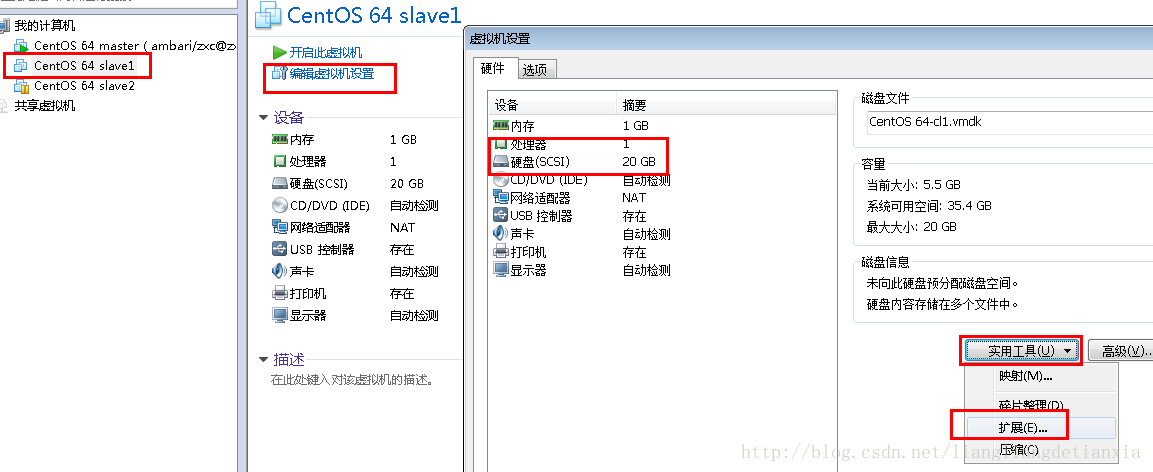
填写扩展的磁盘容量
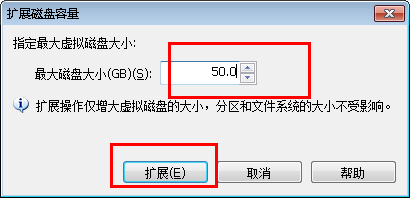
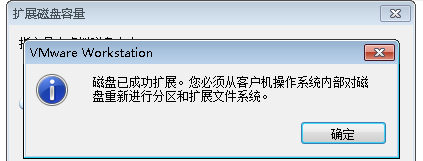
点击扩展后,VMware会提示磁盘已成功扩展。您必须从客户机操作系统内部对磁盘重新进行分区和扩展文件系统。也就是说,这里扩展的磁盘空间,在操作系统里面还不可用,还没生效,需要在操作系统里面进行设置后才能使用。
2、启动客户机操作系统Centos,查看磁盘情况
输入指令
fdisk -l
显示结果如下
Disk /dev/loop0: 107.4 GB, 107374182400 bytes 255 heads, 63 sectors/track, 13054 cylinders Units = cylinders of 16065 * 512 = 8225280 bytes Sector size (logical/physical): 512 bytes / 512 bytes I/O size (minimum/optimal): 512 bytes / 512 bytes
Disk identifier: 0x00000000 Disk /dev/loop1: 2147 MB, 2147483648 bytes 255 heads, 63 sectors/track, 261 cylinders Units = cylinders of 16065 * 512 = 8225280 bytes Sector size (logical/physical): 512 bytes / 512 bytes I/O size (minimum/optimal): 512 bytes / 512 bytes
Disk identifier: 0x00000000 Disk /dev/sda: 37.6 GB, 37580963840 bytes 255 heads, 63 sectors/track, 4568 cylinders Units = cylinders of 16065 * 512 = 8225280 bytes Sector size (logical/physical): 512 bytes / 512 bytes I/O size (minimum/optimal): 512 bytes / 512 bytes
Disk identifier: 0x000c8278 Device Boot Start End Blocks Id System /dev/sda1 * 1 64 512000 83 Linux Partition 1 does not end on cylinder boundary. /dev/sda2 64 1306 9972736 8e Linux LVM
Disk /dev/mapper/vg_test001-lv_root: 9135 MB, 9135194112 bytes 255 heads, 63 sectors/track, 1110 cylinders Units = cylinders of 16065 * 512 = 8225280 bytes Sector size (logical/physical): 512 bytes / 512 bytes I/O size (minimum/optimal): 512 bytes / 512 bytes
Disk identifier: 0x00000000 Disk /dev/mapper/vg_test001-lv_swap: 1073 MB, 1073741824 bytes 255 heads, 63 sectors/track, 130 cylinders Units = cylinders of 16065 * 512 = 8225280 bytes Sector size (logical/physical): 512 bytes / 512 bytes I/O size (minimum/optimal): 512 bytes / 512 bytes
Disk identifier: 0x00000000 Disk /dev/mapper/docker-253:0-264224-pool: 107.4 GB, 107374182400 bytes 255 heads, 63 sectors/track, 13054 cylinders Units = cylinders of 16065 * 512 = 8225280 bytes Sector size (logical/physical): 512 bytes / 512 bytes I/O size (minimum/optimal): 512 bytes / 65536 bytes
Disk identifier: 0x00000000
其中,可以看到现在的分区情况如下
Device Boot Start End Blocks Id System /dev/sda1 * 1 64 512000 83 Linux Partition 1 does not end on cylinder boundary. /dev/sda2 64 1306 9972736 8e Linux LVM
3、创建分区 sda3
输入指令
fdisk /dev/sda
然后根据命令提示创建分区,具体见以下 # 后面的注释
WARNING: DOS-compatible mode is deprecated. It s strongly recommended to
         switch off the mode (command 'c') and change display units to sectors (command 'u').

Command (m for help): n # 输入 n 表示创建新分区 Command action e extended p   primary partition (1-4)
p Partition number (1-4): 3 # 输入 3 表示sda3,因为前面已经有两个了 First cylinder (1306-4568, default 1306): # 回车,按默认值 Using default value 1306 Last cylinder, +cylinders or +size{K,M,G} (1306-4568, default 4568): # 回车,按默认值 Using default value 4568 Command (m for help): w # 输入 w 保存退出  The partition table has been altered! Calling ioctl() to re-read partition table. WARNING: Re-reading the partition table failed with error 16: Device or resource busy.
The kernel still uses the old table. The new table will be used at the next reboot or after you run partprobe(8) or kpartx(8)
Syncing disks.
再次查看分区情况
fdisk -l
这时可以看到
Disk /dev/loop0: 107.4 GB, 107374182400 bytes 255 heads, 63 sectors/track, 13054 cylinders Units = cylinders of 16065 * 512 = 8225280 bytes Sector size (logical/physical): 512 bytes / 512 bytes I/O size (minimum/optimal): 512 bytes / 512 bytes Disk identifier: 0x00000000 Disk /dev/loop1: 2147 MB, 2147483648 bytes 255 heads, 63 sectors/track, 261 cylinders Units = cylinders of 16065 * 512 = 8225280 bytes Sector size (logical/physical): 512 bytes / 512 bytes I/O size (minimum/optimal): 512 bytes / 512 bytes Disk identifier: 0x00000000 Disk /dev/sda: 37.6 GB, 37580963840 bytes 255 heads, 63 sectors/track, 4568 cylinders Units = cylinders of 16065 * 512 = 8225280 bytes Sector size (logical/physical): 512 bytes / 512 bytes I/O size (minimum/optimal): 512 bytes / 512 bytes Disk identifier: 0x000c8278 Device Boot Start End Blocks Id System /dev/sda1 * 1 64 512000 83 Linux Partition 1 does not end on cylinder boundary. /dev/sda2 64 1306 9972736 8e Linux LVM /dev/sda3 1306 4568 26206700 83 Linux Disk /dev/mapper/vg_test001-lv_root: 9135 MB, 9135194112 bytes 255 heads, 63 sectors/track, 1110 cylinders Units = cylinders of 16065 * 512 = 8225280 bytes Sector size (logical/physical): 512 bytes / 512 bytes I/O size (minimum/optimal): 512 bytes / 512 bytes Disk identifier: 0x00000000 Disk /dev/mapper/vg_test001-lv_swap: 1073 MB, 1073741824 bytes 255 heads, 63 sectors/track, 130 cylinders Units = cylinders of 16065 * 512 = 8225280 bytes Sector size (logical/physical): 512 bytes / 512 bytes I/O size (minimum/optimal): 512 bytes / 512 bytes Disk identifier: 0x00000000 Disk /dev/mapper/docker-253:0-264224-pool: 107.4 GB, 107374182400 bytes 255 heads, 63 sectors/track, 13054 cylinders Units = cylinders of 16065 * 512 = 8225280 bytes Sector size (logical/physical): 512 bytes / 512 bytes I/O size (minimum/optimal): 512 bytes / 65536 bytes Disk identifier: 0x00000000
其中,分区已变为3个了,但这时还没挂载,还不能用
Device Boot Start End Blocks Id System /dev/sda1 * 1 64 512000 83 Linux Partition 1 does not end on cylinder boundary. /dev/sda2 64 1306 9972736 8e Linux LVM /dev/sda3 1306 4568 26206700 83 Linux
4、重启操作系统
reboot
5、格式化新分区为ext3
输入指令
mkfs -t ext3 /dev/sda3
结果为
mke2fs 1.41.12 (17-May-2010) Filesystem label= OS type: Linux Block size=4096 (log=2) Fragment size=4096 (log=2) Stride=0 blocks, Stripe width=0 blocks 1638400 inodes, 6551675 blocks 327583 blocks (5.00%) reserved for the super user First data block=0 Maximum filesystem blocks=4294967296 200 block groups 32768 blocks per group, 32768 fragments per group 8192 inodes per group Superblock backups stored on blocks: 32768, 98304, 163840, 229376, 294912, 819200, 884736, 1605632, 2654208, 4096000 Writing inode tables: done Creating journal (32768 blocks): done Writing superblocks and filesystem accounting information: done This filesystem will be automatically checked every 33 mounts or 180 days, whichever comes first. Use tune2fs -c or -i to override.
6、将物理硬盘分区初始化为物理卷,以便被LVM使用,输入指令
lvs pvcreate /dev/sda3
7、向卷组中添加物理卷来增加卷组的容量
查看lvm组名,输入指令 df -h
[root@test001 ~]# df -h Filesystem Size Used Avail Use% Mounted on /dev/mapper/vg_test001-lv_root 8.3G 5.4G 2.5G 69% / tmpfs 1001M 0 1001M 0% /dev/shm /dev/sda1 477M 54M 394M 12% /boot
其中,vg_test001 就是 根 所在的组名
输入指令,增加卷组的容量
vgextend vg_test001 /dev/sda3
8、查看可扩展的空间大小
输入指令,显示LNM卷组的元数据信息
vgdisplay
结果为
--- Volume group --- VG Name vg_test001 System ID Format lvm2 Metadata Areas 2 Metadata Sequence No 4 VG Access read/write VG Status resizable MAX LV 0 Cur LV 2 Open LV 2 Max PV 0 Cur PV 2 Act PV 2 VG Size 34.50 GiB PE Size 4.00 MiB Total PE 8831 Alloc PE / Size 2434 / 9.51 GiB Free PE / Size 6397 / 24.99 GiB VG UUID JuPKc8-Ydps-1bsN-0Wld-fbYS-0Hd2-NgvX1q
其中 Free PE / Size 就是可供分配的自由空间,最多有 24.99G,在扩展时输入小于该值
9、扩充磁盘空间
lvextend -L+24G /dev/mapper/vg_test001-lv_root /dev/sda3
10、使用e2fsck指令检查文件系统错误
e2fsck -a /dev/mapper/vg_test001-lv_root
11、使用resize2fs指令来增大或者收缩未加载的“ext2/ext3”文件系统的大小
resize2fs /dev/mapper/vg_test001-lv_root
12、查看扩展空间后的结果
[root@test001 ~]# df -h Filesystem Size Used Avail Use% Mounted on /dev/mapper/vg_test001-lv_root 32G 5.4G 26G 18% / tmpfs 1001M 0 1001M 0% /dev/shm /dev/sda1 477M 54M 394M 12% /boot
可以看出,在根目录下磁盘空间已经扩容了,大功告成!
宝塔的安装与卸载
安装
Centos安装脚本
yum install -y wget && wget -O install.sh http://download.bt.cn/install/install_6.0.sh && sh install.sh
Ubuntu/Deepin安装脚本
wget -O install.sh http://download.bt.cn/install/install-ubuntu_6.0.sh && sudo bash install.sh
Debian安装脚本
wget -O install.sh http://download.bt.cn/install/install-ubuntu_6.0.sh && bash install.sh
Fedora安装脚本
wget -O install.sh http://download.bt.cn/install/install_6.0.sh && bash install.sh
卸载
1.下载宝塔卸载文件
wget http://download.bt.cn/install/bt-uninstall.sh
2.运行此文件根据提示卸载
sh bt-uninstall.sh
yum 安装fuser命令
yum install -y psmisc
Linux Centos7.2根目录扩容实操(lvm模式)
https://blog.csdn.net/zuozewei/article/details/82912239前提
网管已为虚拟主机追加一块200G虚拟硬盘
实操
查看使用情况
列出各分区使用情况
[root@space ~]# df -hl 文件系统                 容量  已用  可用 已用% 挂载点
/dev/mapper/centos-root   36G   33G  3.2G   92% /
devtmpfs                 3.9G     0  3.9G    0% /dev
tmpfs                    3.9G   88K  3.9G    1% /dev/shm
tmpfs                    3.9G  8.7M  3.9G    1% /run
tmpfs                    3.9G     0  3.9G    0% /sys/fs/cgroup
/dev/sda1                497M  261M  237M   53% /boot
tmpfs                    782M   12K  782M    1% /run/user/0
tmpfs                    782M  4.0K  782M    1% /run/user/988
可以看见/dev/mapper/centos-root 已经使用了92%,我们准备为它扩容。
创建新分区
先看一下现有磁盘情况:
[root@space ~]# fdisk -l 磁盘 /dev/sda:42.9 GB, 42949672960 字节,83886080 个扇区
Units = 扇区 of 1 * 512 = 512 bytes
扇区大小(逻辑/物理):512 字节 / 512 字节
I/O 大小(最小/最佳):512 字节 / 512 字节
磁盘标签类型:dos
磁盘标识符:0x0008f3a5

   设备 Boot      Start         End      Blocks   Id  System
/dev/sda1   *        2048     1026047      512000   83  Linux
/dev/sda2         1026048    83886079    41430016   8e  Linux LVM

磁盘 /dev/sdb:214.7 GB, 214748364800 字节,419430400 个扇区
Units = 扇区 of 1 * 512 = 512 bytes
扇区大小(逻辑/物理):512 字节 / 512 字节
I/O 大小(最小/最佳):512 字节 / 512 字节


磁盘 /dev/mapper/centos-swap:4177 MB, 4177526784 字节,8159232 个扇区
Units = 扇区 of 1 * 512 = 512 bytes
扇区大小(逻辑/物理):512 字节 / 512 字节
I/O 大小(最小/最佳):512 字节 / 512 字节


磁盘 /dev/mapper/centos-root:38.2 GB, 38243663872 字节,74694656 个扇区
Units = 扇区 of 1 * 512 = 512 bytes
扇区大小(逻辑/物理):512 字节 / 512 字节
I/O 大小(最小/最佳):512 字节 / 512 字节 [root@space ~]# lvs LV   VG     Attr       LSize  Pool Origin Data%  Meta%  Move Log Cpy%Sync Convert
  root centos -wi-ao---- 35.62g
  swap centos -wi-ao----  3.89g
已经可以看到新磁盘/dev/sdb。
对新磁盘进行分区
在fdisk的交互模式中,依次输入:
n --创建新分区
p --创建主分区
<回车> --默认分区编号
<回车> --默认起始扇区位置。
<回车> --默认结束扇区位置。
w --写入分区表
[root@space ~]# fdisk /dev/sdb  欢迎使用 fdisk (util-linux 2.23.2)。

更改将停留在内存中,直到您决定将更改写入磁盘。
使用写入命令前请三思。

Device does not contain a recognized partition table
使用磁盘标识符 0xa91cbf10 创建新的 DOS 磁盘标签。

命令(输入 m 获取帮助):m
命令操作
   a   toggle a bootable flag
   b   edit bsd disklabel
   c   toggle the dos compatibility flag
   d   delete a partition
   g   create a new empty GPT partition table
   G   create an IRIX (SGI) partition table
   l   list known partition types
   m   print this menu
   n   add a new partition
   o   create a new empty DOS partition table
   p   print the partition table
   q   quit without saving changes
   s   create a new empty Sun disklabel
   t   change a partition's system id u   change display/entry units v verify the partition table
   w write table to disk and exit x   extra functionality (experts only) 命令(输入 m 获取帮助):n
Partition type:
   p   primary (0 primary, 0 extended, 4 free) e   extended
Select (default p): p
分区号 (1-4,默认 1):
起始 扇区 (2048-419430399,默认为 2048):
将使用默认值 2048
Last 扇区, +扇区 or +size{K,M,G} (2048-419430399,默认为 419430399):
将使用默认值 419430399
分区 1 已设置为 Linux 类型,大小设为 200 GiB

命令(输入 m 获取帮助):w
The partition table has been altered! Calling ioctl() to re-read partition table.
正在同步磁盘。
这样就把整个磁盘分成了一个区。
再看一下现有磁盘情况
[root@space ~]# fdisk -l 磁盘 /dev/sda:42.9 GB, 42949672960 字节,83886080 个扇区
Units = 扇区 of 1 * 512 = 512 bytes
扇区大小(逻辑/物理):512 字节 / 512 字节
I/O 大小(最小/最佳):512 字节 / 512 字节
磁盘标签类型:dos
磁盘标识符:0x0008f3a5

   设备 Boot      Start         End      Blocks   Id  System
/dev/sda1   *        2048     1026047      512000   83  Linux
/dev/sda2         1026048    83886079    41430016   8e  Linux LVM

磁盘 /dev/sdb:214.7 GB, 214748364800 字节,419430400 个扇区
Units = 扇区 of 1 * 512 = 512 bytes
扇区大小(逻辑/物理):512 字节 / 512 字节
I/O 大小(最小/最佳):512 字节 / 512 字节
磁盘标签类型:dos
磁盘标识符:0xa91cbf10

   设备 Boot      Start         End      Blocks   Id  System
/dev/sdb1            2048   419430399   209714176   83  Linux

磁盘 /dev/mapper/centos-swap:4177 MB, 4177526784 字节,8159232 个扇区
Units = 扇区 of 1 * 512 = 512 bytes
扇区大小(逻辑/物理):512 字节 / 512 字节
I/O 大小(最小/最佳):512 字节 / 512 字节


磁盘 /dev/mapper/centos-root:38.2 GB, 38243663872 字节,74694656 个扇区
Units = 扇区 of 1 * 512 = 512 bytes
扇区大小(逻辑/物理):512 字节 / 512 字节
I/O 大小(最小/最佳):512 字节 / 512 字节
已经多出了一个新分区
设备 Boot      Start      End           Blocks   Id  System
/dev/sdb1      2048       419430399   209714176   83  Linux
扩展根目录
将新分区用于扩展/root
先看一下卷分组
[root@space ~]# vgdisplay -v Using volume group(s) on command line.
  --- Volume group ---
  VG Name               centos
  System ID
  Format                lvm2
  Metadata Areas        1
  Metadata Sequence No  3
  VG Access             read/write
  VG Status             resizable
  MAX LV                0
  Cur LV                2
  Open LV               2
  Max PV                0
  Cur PV                1
  Act PV                1
  VG Size               39.51 GiB
  PE Size               4.00 MiB
  Total PE              10114
  Alloc PE / Size       10114 / 39.51 GiB
  Free  PE / Size       0 / 0
  VG UUID               Ykx8CQ-951y-7BC0-vfDm-h05J-AyyK-XVwBY4

  --- Logical volume ---
  LV Path                /dev/centos/swap
  LV Name                swap
  VG Name                centos
  LV UUID                NarvTO-dKF1-dAfu-3yZD-g1Bd-jUvt-qTGIP6
  LV Write Access        read/write
  LV Creation host, time localhost, 2015-03-31 10:58:34 +0800
  LV Status              available # open                 2 LV Size                3.89 GiB
  Current LE             996
  Segments               1
  Allocation             inherit
  Read ahead sectors     auto
  - currently set to     8192
  Block device           253:0

  --- Logical volume ---
  LV Path                /dev/centos/root
  LV Name                root
  VG Name                centos
  LV UUID                nVjnIr-3kdo-ncmg-Qoyw-DQeG-F0Lh-cdzVhi
  LV Write Access        read/write
  LV Creation host, time localhost, 2015-03-31 10:58:35 +0800
  LV Status              available # open                 1 LV Size                35.62 GiB
  Current LE             9118
  Segments               1
  Allocation             inherit
  Read ahead sectors     auto
  - currently set to     8192
  Block device           253:1

  --- Physical volumes ---
  PV Name               /dev/sda2
  PV UUID               BWUVqr-mVpy-x6gX-bqxU-NJP7-l48n-Lrx9Ke
  PV Status             allocatable
  Total PE / Free PE    10114 / 0
可以看到当前卷分组名为"centos"。
为之前新增的分区创建物理卷:
[root@space ~]# pvcreate /dev/sdb1 Physical volume "/dev/sdb1" successfully created
查看结果:
[root@space ~]# pvdisplay --- Physical volume --- PV Name /dev/sda2 VG Name centos PV Size 39.51 GiB / not usable 3.00 MiB Allocatable
![英雄棋士团(预下载)?=$bqr['banben']?>](http://shouyouimg.cnzzla.com/d/file/shouyoupic/yingxiongqishituanyuxiazai.jpg)
![美食小当家?=$bqr['banben']?>](http://shouyouimg.cnzzla.com/d/file/shouyoupic/meishixiaodangjia.png)
![2047?=$bqr['banben']?>](http://shouyouimg.cnzzla.com/d/file/shouyoupic/2047.jpg)
![荣誉指挥官(预下载)?=$bqr['banben']?>](http://shouyouimg.cnzzla.com/d/file/shouyoupic/rongyuzhihuiguanyuxiazai.png)
![繁荣美食市场物语?=$bqr['banben']?>](http://shouyouimg.cnzzla.com/d/file/shouyoupic/fanrongmeishishichangwuyu.jpg)
![夸克浏览器 v4.2.1.138 好用的手机浏览器?=$bqr['banben']?>](http://shouyouimg.cnzzla.com/d/file/appimg/202007/kuakezuolanqi.jpg)
![移动办公软件 OfficeSuite Premium v10.18.28716 内购解锁版?=$bqr['banben']?>](http://shouyouimg.cnzzla.com/d/file/appimg/202007/yidongbangongruanjian.jpg)
![乐秀视频编辑器 VideoShow v8.8.4 内购解锁版?=$bqr['banben']?>](http://shouyouimg.cnzzla.com/d/file/appimg/202007/lexiushipinbianjiqi.png)
![X 浏览器 v3.3.9 一款小巧的安卓浏览器?=$bqr['banben']?>](http://shouyouimg.cnzzla.com/d/file/appimg/202007/x.jpg)
![安卓密码管理软件 Enpass v6.4.5.368 内购解锁版?=$bqr['banben']?>](http://shouyouimg.cnzzla.com/d/file/appimg/202007/anzhuomimaguanliruanjian.jpg)
![差分复制同步 FastCopy-M v3.6.3.51 绿色便携版?=$bqr['banben']?>](http://shouyouimg.cnzzla.com/d/file/softimg/FastCopy3.png)
![多标签页拓展 Clover v3.5.2 Build 19809 精简绿色版?=$bqr['banben']?>](http://shouyouimg.cnzzla.com/d/file/softimg/Clover.png)
![文件重命名 Advanced Renamer v3.85 Lite 绿色便携版?=$bqr['banben']?>](http://shouyouimg.cnzzla.com/d/file/softimg/Advanced_Renamer.png)
![网络防火监控 GlassWire Elite v2.1.166 绿色便携版?=$bqr['banben']?>](http://shouyouimg.cnzzla.com/d/file/softimg/GlassWire.png)
![影音播放器 Daum Potplayer v1.7.20538 美化便携版?=$bqr['banben']?>](http://shouyouimg.cnzzla.com/d/file/softimg/PotPlayer.png)


